---
title: WebRTC SBC Gateway Integration for Flutter
description: "This documentation is intended for developers connecting a Flutter WebRTC mobile app ([**Flutter**](https://en.wikipedia.org/wiki/Flutter_(software)) - Android/iOS) to the **SolusiPBX WebRTC SBC Gateway** infrastructure. This gateway acts as the *signaling* bridge and *media anchor* between the WebRTC protocol (mobile app side) and…"
url: "https://solusipbx.id/en/pusat-bantuan/webrtc-sbc-gateway-integration-for-flutter-eng/"
updated: "2026-10-05"
category: Developer
---
# WebRTC SBC Gateway Integration for Flutter
This documentation is intended for developers connecting a Flutter WebRTC mobile app ([**Flutter**](https://en.wikipedia.org/wiki/Flutter_(software)) - Android/iOS) to the **SolusiPBX WebRTC SBC Gateway** infrastructure. This gateway acts as the *signaling* bridge and *media anchor* between the WebRTC protocol (mobile app side) and the PBX *Core* (SIP backend side).
## 1. Architecture & Connection Flow
The WebRTC SBC Gateway acts as a *signaling* translator and secures the media path (*media anchor*). The communication flow is designed as follows:
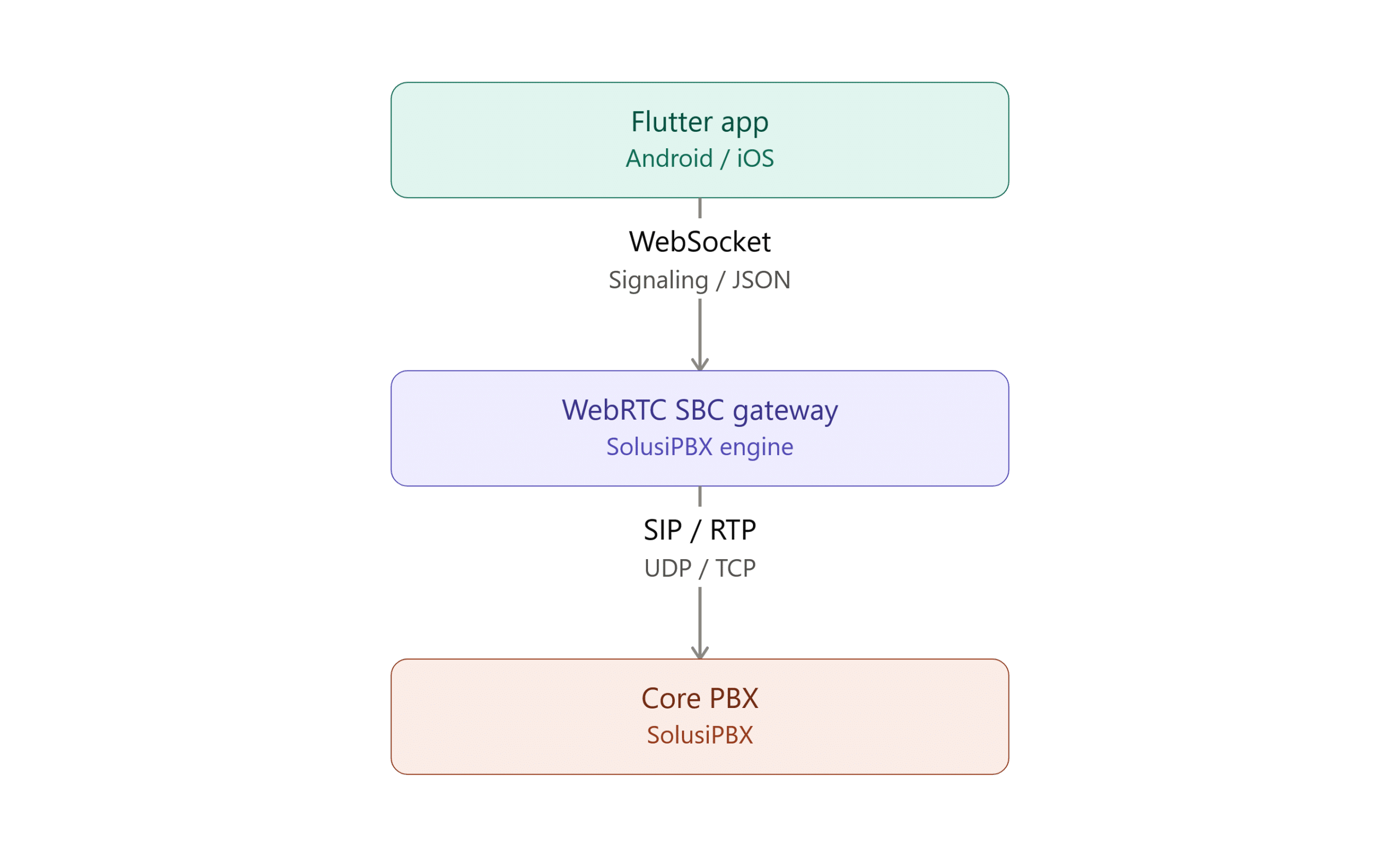
1. **Signaling**: The Flutter app uses a **WebSocket Secure** (`wss://`) connection to exchange JSON data (SIP registration, *handshake*, and SDP *Offer/Answer* negotiation).
2. **Media Stream (Audio/Video)**: The voice stream is encrypted with SRTP/DTLS between the Flutter app and the WebRTC SBC Gateway, then forwarded as standard RTP to the [PBX *Core*](https://solusipbx.com).
## 2. Requirements & Dependencies (Flutter)
Add the following core *libraries* to your Flutter project's `pubspec.yaml` file to handle the Flutter WebRTC integration and WebSocket connection.
YAML
```
dependencies:
flutter:
sdk: flutter
# Core library for WebRTC processing (Audio/Video)
flutter_webrtc: ^0.12.0
# WebSocket client for signaling communication to the Gateway
web_socket_channel: ^2.4.5
```
### Platform Permission Configuration
- **Android**: Make sure `minSdkVersion` in `build.gradle` is at least **21**. Add the following permissions to `AndroidManifest.xml`:
XML
```
```
**iOS**: Add microphone and camera access descriptions to `ios/Runner/Info.plist`:
XML
```
NSMicrophoneUsageDescription
This app needs microphone access to make phone calls.
NSCameraUsageDescription
This app needs camera access to make video calls.
```
## 3. Gateway Endpoint Parameters
Endpoint details used to initialize the connection to the SolusiPBX Gateway:
- **SBC WebSocket URL**: `wss://sbc.solusipbx.com:8989` *(adjust to the domain/port of the gateway you were given)*
- **WebSocket Protocol**: `janus-protocol` *(required sub-protocol for the handshake)*
- **Service Module Identifier**: `janus.plugin.sip` *(internal module providing SIP service)*
## 4. Integration Steps & JSON Payloads
Communication between Flutter and the SBC Gateway is based on JSON-RPC over WebSocket.
> ⚠️ **IMPORTANT FOR DEVELOPERS:** The SolusiPBX WebRTC SBC Gateway's signaling protocol uses a specific JSON-RPC standard. Because of this, the **`"janus"`** key at the root of the JSON payload is **mandatory** at the system syntax level and must not be renamed, or the Gateway Engine won't recognize the *request*.
### Step 1: Open the WebSocket Connection & Session
The Flutter app must open a stable *socket* connection and create a **Gateway Session**.
Dart
```
import 'package:web_socket_channel/io.dart';
final channel = IOWebSocketChannel.connect(
Uri.parse('wss://sbc.solusipbx.com:8989'),
protocols: ['janus-protocol'],
);
```
Send this payload to create a new session:
JSON
```
{
"janus": "create",
"transaction": "tx_create_session_01"
}
```
*The SBC Gateway will return a response containing a `session_id`, which you must save for the next step.*
### Step 2: Activate the SIP Service Module
Use the `session_id` you received to *attach* to the SIP service module.
JSON
```
{
"janus": "attach",
"session_id": 123456789,
"plugin": "janus.plugin.sip",
"transaction": "tx_attach_sip_01"
}
```
*The Gateway will return a response containing a `handle_id`. This ID represents the specific communication channel for your phone extension.*
### Step 3: SIP Extension Registration (Register Extension)
Send a `register` command so the WebRTC SBC Gateway registers the account with the SolusiPBX *Core* PBX.
JSON
```
{
"janus": "message",
"session_id": 123456789,
"handle_id": 987654321,
"transaction": "tx_sip_register_01",
"body": {
"request": "register",
"username": "sip:101@solusipbx.com",
"secret": "S3cretP4ssword",
"proxy": "sip:core-pbx.solusipbx.internal",
"refresh": true
}
}
```
### Step 4: Making an Outbound Call
To place a call, the Flutter app creates a local *PeerConnection* object via `flutter_webrtc`, generates an **SDP Offer**, then sends it to the Gateway inside a `jsep` object.
JSON
```
{
"janus": "message",
"session_id": 123456789,
"handle_id": 987654321,
"transaction": "tx_outbound_call_01",
"body": {
"request": "call",
"uri": "sip:102@solusipbx.com"
},
"jsep": {
"type": "offer",
"sdp": "v=0rno=- 123456..." // SDP string generated by flutter_webrtc
}
}
```
## 5. Connection Management & Best Practices
### Session Keep-Alive (Heartbeat)
The WebRTC SBC Gateway needs a *heartbeat* mechanism to keep the session from timing out. Developers must send a periodic *ping* every **25–30 seconds** using this format:
JSON
```
{
"janus": "keepalive",
"session_id": 123456789,
"transaction": "tx_keepalive_rand"
}
```
### STUN/TURN Configuration (ICE Servers)
When initializing `RTCConfiguration` in `flutter_webrtc`, developers must include the SolusiPBX STUN/TURN servers. This is essential to ensure media (audio/video) can traverse mobile networks or Wi-Fi networks protected by strict NAT/Firewall rules, preventing *one-way audio* or *no-audio* issues.