



Help Center or Customer Center teams often receive customers with technical issues that can’t be resolved by one person. The agent has to contact the technical team, connect them to the customer, and then make sure everyone is on the line. This process slows down handling and reduces customer comfort.
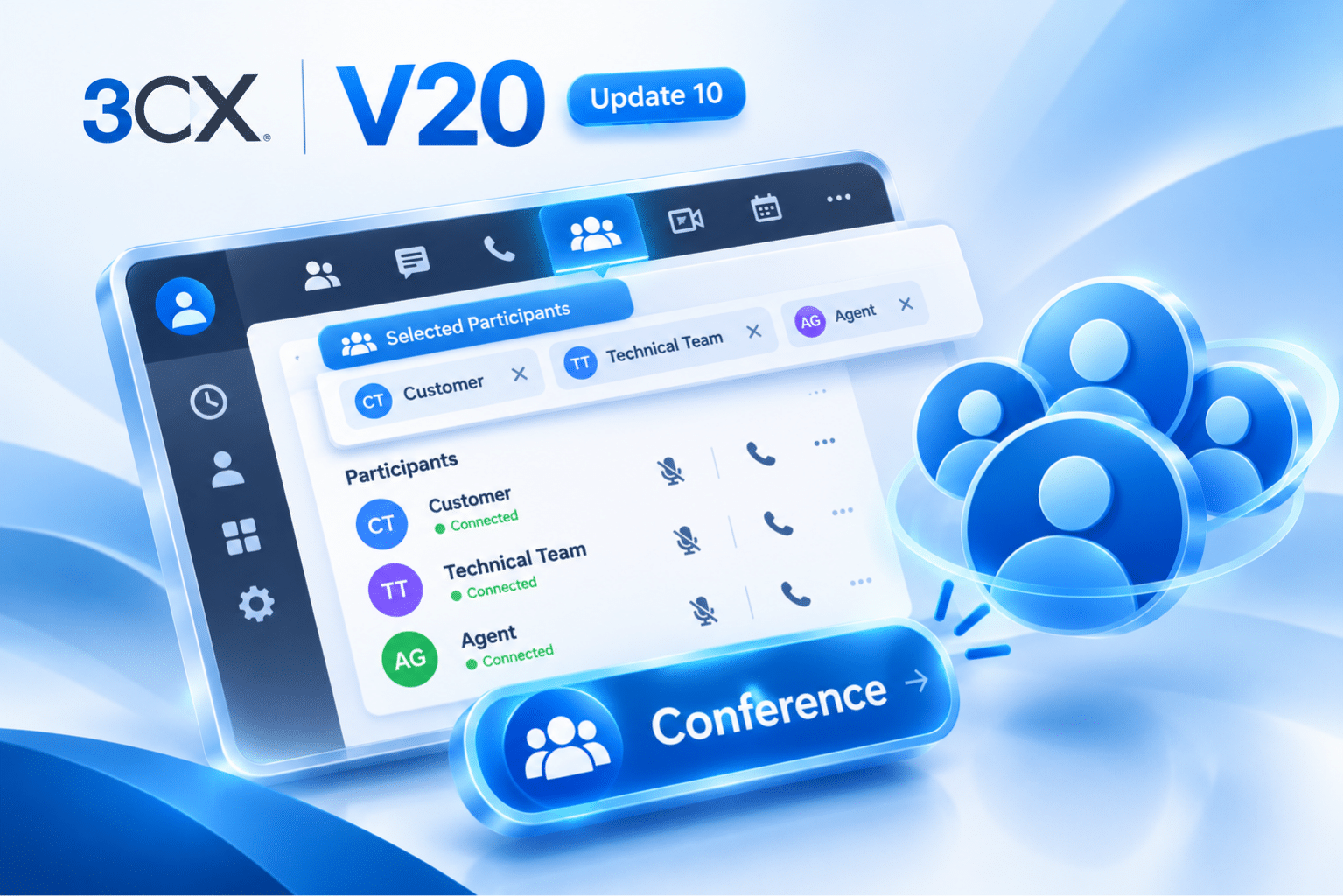
3CX V20 Update 10 introduces a simpler solution: a Conference shortcut at the top of the 3CX Web Client. An audio conference can be started in just a few clicks, and all participants are managed from one dedicated panel.
What’s Changed?
The audio conference feature already existed. In Update 10, it comes with a more direct starting point and a centralized participant management panel. Through this panel, the host can:
- see who has already joined,
- call back participants who haven’t answered,
- add or remove participants without ending the conversation.
Case Example: A Help Center Agent Needs Help from the Technical Team
Suppose a Help Center agent is assisting a customer who is experiencing a service disruption, and the issue needs to be handled by the technical team. Here is the flow using the Conference shortcut:
- Select participants.
The agent, as host, opens the Conference shortcut, then selects a colleague from the technical team or a phonebook contact, and adds the customer via phone number. The list of participants is displayed first before the conference begins. - Make sure everyone is connected.
The panel shows the connection status of each participant. Selected participants aren’t necessarily connected yet, so make sure the customer and the technician have both joined before the discussion begins. - Manage the conversation.
The agent can mute participants, remove participants, or call back participants who didn’t answer or got disconnected, all from the same panel. - Add participants when needed.
If the technician needs input from another colleague, the agent can add a user, contact, or external number through the Add participants menu without interrupting the conversation. - Remove a participant or end the conference.
Once the technician is done, the agent can remove them and continue the conversation with the customer. Keep in mind that removing a participant is different from ending the conference. The trash can icon at the top of the panel will end the conference for all participants.
Benefits for Customer Service Teams
- Faster handling: customers don’t wait long when the agent brings in the technical team.
- Clearer communication: customers and technicians speak directly without an intermediary.
- Control in the agent’s hands: participant status, mute, redial, and adding participants are all managed from one place.
- More comfortable customers: the issue is discussed in a single call.
Pop-Up Dialer for Multitasking
Audio conferences can also be used together with the pop-up dialer, a dialer that floats on the screen. Agents can still access call controls while opening tickets or customer data in other applications.
Conclusion
The Conference shortcut in 3CX V20 Update 10 makes the process of bringing customers and the technical team together in one call shorter and more controlled. For Help Center and Customer Center teams, this feature helps resolve customer issues more efficiently.
Want your Help Center team to handle customer issues faster? SolusiPBX is ready to help you get started with 3CX, from needs consultation through to implementation.